Guide
IPTV Subscription Firestick Guide: Install, Tune and Fix
An IPTV subscription Firestick setup takes about twenty minutes the first time round: a helper app from the Amazon Appstore, a switch in a hidden menu, the player, then the details from your login message. This guide walks through that order on a Fire TV stick and then turns to the picture, the guide, storage and the network, so the stick is as quick near the end of your pass as it was on day one.
IPTV subscription Firestick: which Fire TV models work
Besides the stick, you need the message with your login, sent over WhatsApp or by email 2 minutes after you pay. It lists your username, password and server address, a playlist link, a guide link, the date your pass ends and the player’s download link. Keep it open on your phone while you type on the television.
| Device | Sharpest picture | 4K HDR and Atmos | Player through Downloader |
|---|---|---|---|
| Fire TV Stick Lite or Fire TV Stick (HD) | 1080p | No | Yes, on Fire OS |
| Fire TV Stick 4K | 3840 × 2160 | Yes, by source | Yes, on Fire OS |
| Fire TV Stick 4K Max | 3840 × 2160 | Yes, by source | Yes, on Fire OS |
| Fire TV Cube | 3840 × 2160 | Yes, by source | Yes, on Fire OS |
| A newer stick on Vega OS | See the listing | See the listing | No, Appstore apps only |
| A television with Fire TV inside | Set by the panel | Set by the panel | Read its About page first |
Vega OS is the system Amazon now loads on some of its recent sticks. Its menus look familiar, yet it refuses any app that does not come from the Appstore, where Smarters Pro is not listed. The Downloader route below does not exist there, so check the operating system in the product details before you pay.
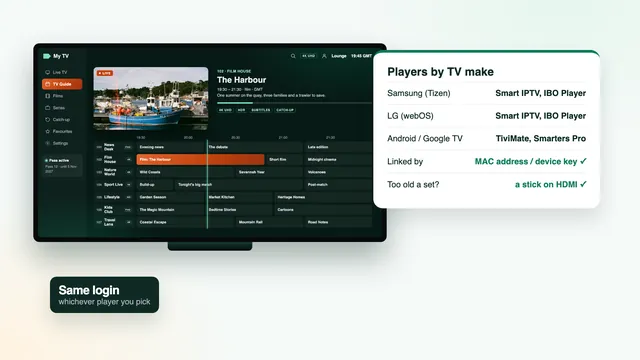
Unsure about a stick you already own? Settings › My Fire TV › About names the model and, further down, the software version. Fire OS there means you can carry on. On Vega OS, a Google TV set, a Samsung or LG with a compatible player, or an Apple TV will do better: our guide to Smart TV players handles televisions, and the setup page for every other device handles the rest.
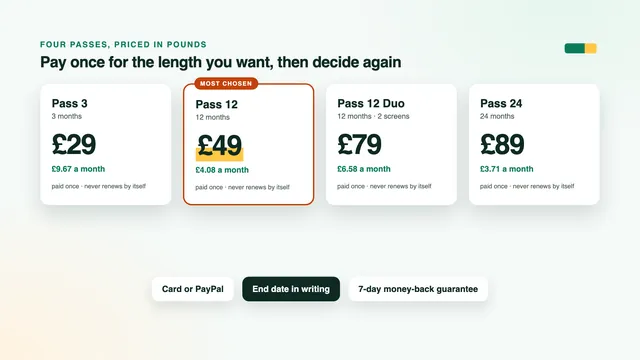
Still choosing? How an IPTV subscription pass works on this site explains the single payment and the written end date. The four passes on the home page differ only in length and screens; a household with one stick usually goes for Pass 12, £49 for 12 months.
Installing the player with Downloader
At the time of writing, Smarters Pro, the player most Fire TV owners use, is missing from the Amazon Appstore. Downloader, a no-cost AFTVnews app that the Appstore does carry, fetches it from a web address and hands it to the stick’s installer once you allow it.
- From the home screen go to Find, then Search, and type Downloader. Pick the orange icon published by AFTVnews and select Get or Download.
- Back on the home screen, open Settings, then My Fire TV, then Developer options.
- Menu not there? Inside My Fire TV, open About, rest the cursor on your stick’s name at the top of the list and click it seven times. A note confirms developer mode; step back once and Developer options has appeared.
- Select Install unknown apps, locate Downloader and set it to On. Older software labels the line Apps from Unknown Sources, which does the same.
- Launch Downloader, allow storage access if it asks, and enter the player link from your login message in its URL field. Press Go.
- Once the file is down, choose Install, and afterwards Done instead of Open. When Downloader offers to remove the installer, say yes: it has no further use.
This is the only fiddly part of an IPTV subscription Firestick install, and you do it once. Afterwards you may turn Install unknown apps off again for Downloader, so nothing else arrives on the stick without your say-so. To pin the player to the front row, hold Home, pick Apps, highlight it and press the three-line menu button.
TiviMate also runs on Fire TV, free with paid premium options, and goes on through Downloader in the same way; fans of a grid-style guide tend to choose it. Both players take the same login.
Signing in with the Xtream Codes details
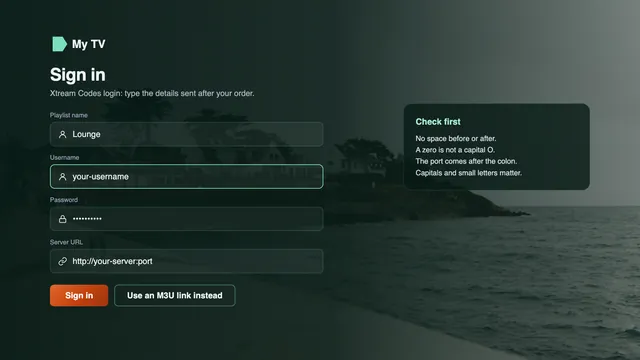
Launch the player. Smarters Pro shows its terms first, then a choice of ways to add a user. Go for the Xtream Codes option rather than a playlist or file: one sign-in then brings live TV, films, series, the seven-day guide and catch-up.
- Any name: a label of your choice, such as Lounge.
- Username and password: exactly as written, upper and lower case included. A stray space tacked on by the remote’s keyboard is behind more refused sign-ins than anything else.
- Server URL: the whole address from the message, shaped like
http://your-server:port. The colon and port number belong in it; a closing slash does not, unless your message shows one.
Long passwords are tedious on the Fire TV keyboard. Amazon’s Fire TV phone app acts as a remote with a proper keyboard when phone and stick share a Wi-Fi network. After sign-in, give the stick up to two minutes to fetch the channels and listings on that first run.
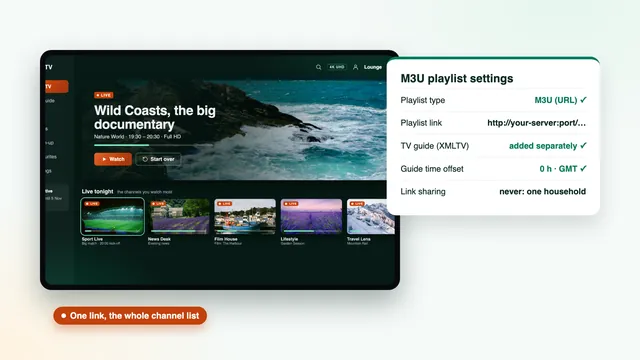
Two refusals in a row? Stop trying variations and compare each character with the message. If that changes nothing, message the team with a photo of the screen; replies come 24/7, in English. A player that will only take a playlist link is another matter, covered in the guide to the M3U playlist link.
The guide, catch-up and the clocks changing
Signing in with Xtream fills the seven-day guide automatically, set to UK time. Smarters Pro opens it from Live TV; TiviMate makes the grid its main screen. If listings stay empty after the first sign-in, run the guide refresh in the player’s settings and wait a minute.
Two Sundays a year can push the listings an hour out: the switch to BST (GMT+1) at the end of March and the return to GMT at the end of October. A player that keeps its own time setting may then run an hour early or late. Its EPG time offset, sometimes called timeshift, puts it right: nudge it one hour either way until the programme on screen agrees with the guide.
Catch-up works wherever a channel provides it, generally for the past week. Look for a little clock or arrow beside a programme in the listings, move back to it and press play.
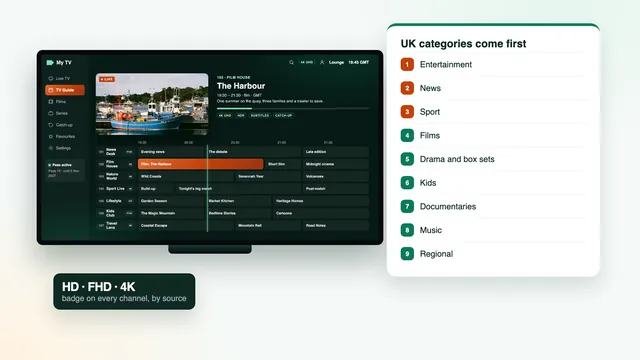
Rather than scroll through 40,000+ channels every night, read the guide to channel categories: it shows how the list is sorted and how to keep a short favourites row.
Picture and frame-rate settings on the stick
Out of the box a Fire TV assumes the 60 Hz rhythm of most streaming apps. British television is made at 50 frames per second, and the mismatch shows as a slight stutter when the camera pans across a pitch. In an IPTV subscription Firestick setup, the picture is decided under Settings › Display & Sounds.
- Display › Video Resolution: Auto. The stick then outputs the best resolution the TV agrees to. Forcing 4K on a 1080p set gives a black screen; leave the confirmation untouched and the stick falls back after a few seconds.
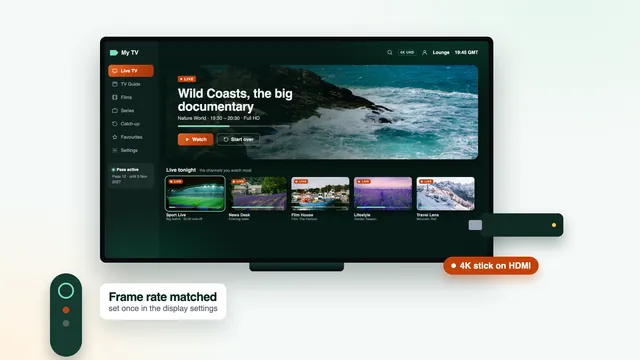
- Display › Match Original Frame Rate: On. Where listed, it lets the player switch the TV to 50 Hz, taking the judder out of 50 fps sport. If the player has its own auto frame rate toggle, enable that too.
- Display › Dynamic Range Settings: Adaptive. HDR then engages only for programmes made in HDR. The Always HDR choice converts everything, and plain HD channels end up looking flat or murky.
- Audio › Surround Sound: Best Available. A soundbar or receiver that decodes Dolby Atmos gets it whenever the source includes it.
Mind the HDMI socket. A 4K picture wants a port rated HDMI 2.0 or later, usually labelled 4K or UHD, and Samsung and LG sets may need their enhanced HDMI colour option enabled on that port before HDR shows up.
No setting adds detail the source never had: programmes made in 4K reach 3840 × 2160, while most live channels are HD or Full HD. Match nights get their own treatment in the sport guide.
Storage housekeeping: keeping the stick quick
Storage on a Fire TV stick is small. A player caching thousands of logos and a week of listings eats into it month after month, and a stick near its limit slows, stalls on menus or turns down updates.
- See how much room is left: Settings › My Fire TV › About › Storage. When it is nearly full, deal with it before the player starts acting up.
- Empty the player’s cache. In Settings › Applications › Manage Installed Applications, highlight your player and press Clear cache. Avoid Clear data beside it, which erases the saved sign-in and favourites.
- From that same list, uninstall apps you no longer use, and remove any installer still stored in Downloader.
- Silence the home-screen trailers: under Settings › Preferences › Featured Content, switch off video and audio autoplay, leaving more headroom for the player.
- Restart weekly, or whenever menus drag: press and hold Select with Play/Pause for about five seconds, or go to Settings › My Fire TV › Restart.
Most IPTV subscription Firestick complaints that reach us late in a pass, slow menus or a player closing itself, end with an emptied cache and a restart.
Wi-Fi, Ethernet adapters and busy evenings
Tucked behind the screen, the stick sits in the worst spot in the room for wireless reception. Two small changes do more than any menu:
- Use the HDMI extender. The stubby cable in the box lifts the stick clear of the panel, whose metal back otherwise smothers the signal.
- Pick 5 GHz. Neighbouring routers jam the 2.4 GHz band wherever homes share walls; 5 GHz is faster over short distances.
With the router in another room, an Ethernet adapter is the steadiest fix for an IPTV subscription Firestick connection. Amazon and other brands make adapters that slot between the stick and its power supply and add a network socket; check it suits the power port on your model. Certain Fire TV Cube models have the socket built in. These adapters usually run at 100 Mb/s, four times what a 4K picture needs. Where no cable can reach, powerline kits or a mesh unit near the television do most of the job.
Run your speed check on the Fire TV itself, with a speed app or its browser, and run it in the evening. From about 7pm to 11pm, above all at weekends and on big match nights, home connections carry their heaviest traffic. Aim for a steady 10 Mb/s for Full HD, or 25 Mb/s for 4K, as seen by the stick.
Add a second screen upstairs at the same moment and the sums change. The multi-room guide works through them, and Pass 12 Duo is the pass for two screens at once.
Fire TV errors and quick fixes
Restart the router, then the stick, before anything else; plenty of faults clear on their own.
| On screen | Usual reason | Try this |
|---|---|---|
| Downloader cannot install the file | Unknown apps not allowed for Downloader, or no free space | Allow Downloader; clear some room |
| No unknown-apps option at all | A Vega OS stick | Move the pass to another device or the TV’s own player |
| Sign-in refused | Typo, trailing space, missing port, or https in place of http | Re-enter from the message, one character at a time |
| Listings one hour out | The switch between GMT and BST | Change the EPG time offset by one hour |
| Pauses on weekday evenings | Crowded 2.4 GHz, stick behind the screen | 5 GHz, the extender or an Ethernet adapter |
| Stutter on football or motor racing | TV locked to 60 Hz | Turn Match Original Frame Rate on |
| HD channels look flat or dim | Always HDR chosen | Set Dynamic Range Settings to Adaptive |
| Menus freeze, the player shuts | Storage almost full | Clear cache, uninstall extras, restart |
| Sign-in fails after months of use | The pass has reached its end date | Order again for a new login |
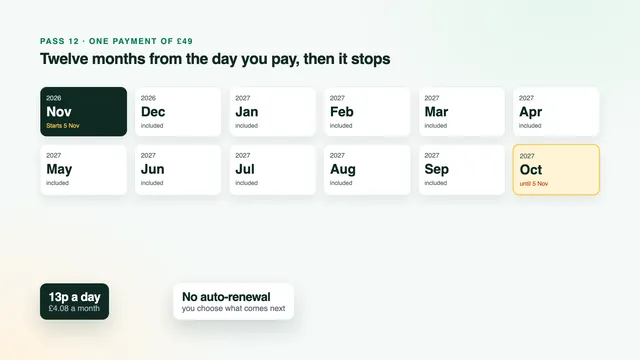
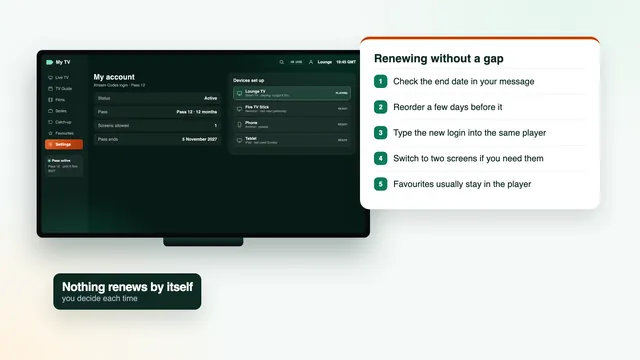
Every pass stops on the date in your login message, and nothing is charged again. Renewing before the end date shows how to reorder without a gap, and the new login goes into the player you already have. To line up every pass with its end date, compare the passes on the plans page.
Frequently asked questions
Does an IPTV subscription Firestick setup work on every Fire TV?
On any Fire TV running Fire OS, yes: that includes the Lite, HD, 4K and 4K Max sticks and the Cube. Certain recent sticks use Vega OS, which accepts Appstore apps only, and the player is not among them. Settings › My Fire TV › About tells you which system yours runs.
Can I get Smarters Pro from the Amazon Appstore?
Not at the time of writing. It is installed through Downloader, itself in the Appstore, using the link in your login message. Copycat apps with almost the same name exist, so confirm the developer reads Tech Smarters Private Limited.
Does clearing the cache delete my login?
No. The cache holds temporary files such as logos and listings, which the player simply fetches again. Clear data is the button to avoid: it resets the app and you would have to sign in again.
Why does my stick not show 4K?
Three checks: a 4K model, an HDMI 2.0 or later socket on the TV, and a channel or title actually produced in 4K. Most live channels are HD or Full HD, whatever the stick.
Can I install the player on two Fire TV sticks?
Installing and signing in on both is fine. On a one-screen pass, though, only one stick can play at any moment; Pass 12 Duo allows two at once for 12 months. Lending the login to another household can get it suspended.
What happens to the stick when my pass ends?
The player stays put, but the login stops on the end date in your message. Order again and you receive a new login; typing it into the same player is a two-minute job.