Guide
IPTV subscription sports: smooth live matches, steady match nights and no spoilers
IPTV subscription sports viewing rests on three things you can check from the sofa: the frame rate the source sends, the broadband that reaches your TV at the busiest hour of the evening, and the short delay between the stadium and your screen. This guide covers each one, the TV settings that keep motion natural, and the pass that fits a house where two people want different games at the same time.
What IPTV subscription sports coverage looks like
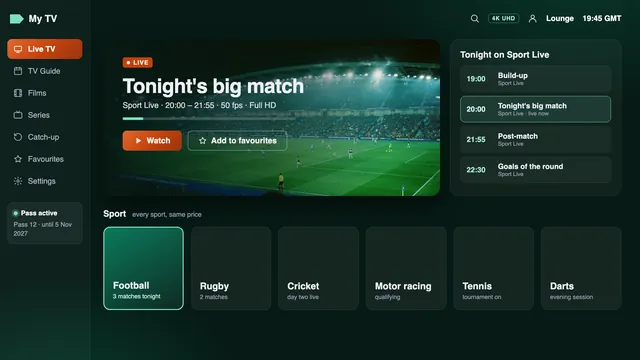
Sport has its own category among the UK groups at the top of the channel list, and further down, many other countries have sport groups of their own. Between them they carry football, cricket, both codes of rugby, tennis, golf, darts, snooker, boxing and motor racing, along with the studio shows, previews and highlights that surround them.
What a channel shows on a given day is in the seven-day guide, not in a fixture list from us, and we cannot promise that one particular game will be on. If you follow a team from abroad, that country’s sport groups are worth a look, often with commentary in its own language.
How the full channel list is organised explains the country and category order, the HD, FHD and 4K badges and how to hide the groups you never open.
Why 50 frames per second matters for sport
Television in Britain is built around 50 pictures a second, a legacy of the 50 Hz mains supply. Films and much drama run at 24 or 25 frames, which suits them. Sport is different: a cross-field ball, a first serve or a car through a quick bend moves a long way between frames, and at 25 frames you see it travel in steps.
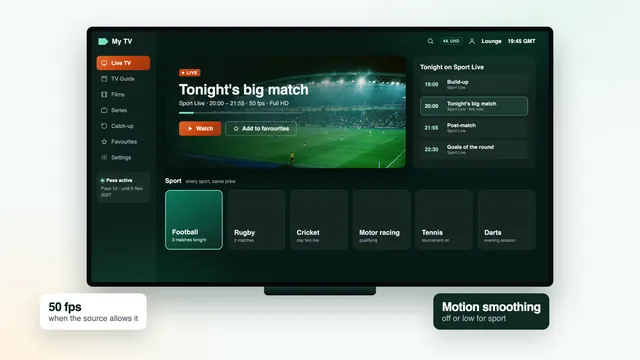
At 50 frames per second the ball follows a smooth arc, the camera can pan across a pitch without smearing, and slow-motion replays hold together. Streams on this list run at 50 fps when the source allows it. Where a source sends 25 frames, the player cannot invent the missing ones, whatever the resolution badge says; the stream details behind the info button of many players show which you are getting.
| Sport | What stretches the picture | What helps most |
|---|---|---|
| Football | Long passes and fast pans across a wide pitch | 50 fps and frame-rate matching on the device |
| Rugby | Crowded breakdowns and quick hands along the line | 50 fps, with motion smoothing off or low |
| Cricket | The ball leaving the bowler’s hand; sessions lasting hours | A connection that stays steady all afternoon |
| Tennis | A small ball at speed through long rallies | 50 fps and frame-rate matching |
| Golf | Slow pans over fairways and greens, fine texture | Resolution, plus HDR when the source offers it |
| Motor racing | Fast bends, onboard cameras and rapid cuts | 50 fps and a wired connection |
| Boxing | Short bursts of action under bright ring lights | Steady broadband late in the evening, when the main bout starts |
| Darts | A small board and darts in flight | Resolution and a sharp, not over-sharpened, picture |
| Snooker | Ball colours on green cloth, slow shots round the table | Accurate colour from a standard or calibrated picture mode |
Broadband for match nights
Each screen that plays live sport needs its own share of the connection, and it needs that share all the way through, not only during the few seconds a speed check runs.
| Screens playing at once | HD | Full HD | 4K |
|---|---|---|---|
| One | 5 Mb/s | 10 Mb/s | 25 Mb/s |
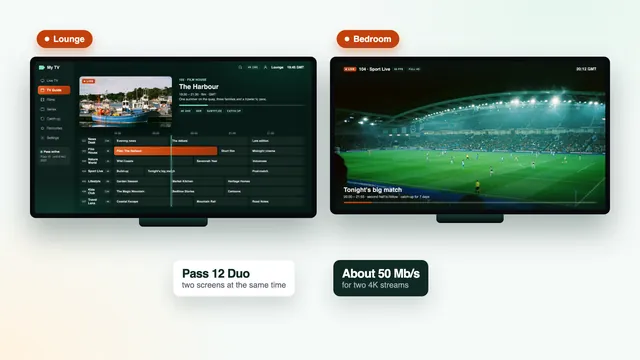
| Two (Pass 12 Duo) | 10 Mb/s | 20 Mb/s | 50 Mb/s |
Those figures cover the streams alone, and on a match night phones, consoles and video calls want their share too. Leave headroom, and take the reading on the TV or stick: a phone beside the router sees a far healthier connection than a TV two rooms away.
Wired, or Wi-Fi on 5 GHz
A network cable running straight to the TV or stick is the steadiest link you can have. Many TVs have a 100 Mb/s Ethernet port, which is still plenty for one 4K stream. Where a cable is out of the question, use the 5 GHz band and keep the device within a room or so of the router; 2.4 GHz is crowded in flats and terraced streets, where dozens of networks share it. Powerline adapters, which carry the network through the mains wiring, or a mesh Wi-Fi system help when the router lives in a distant corner of the home.
The 19:00–23:00 peak
Between seven and eleven in the evening the whole country streams at once, with Saturdays, Sundays and the evenings of major fixtures heaviest of all. Several servers share the load at those hours. Inside your home, the peak is yours to manage: a console set to update itself at eight, or a cloud backup on a laptop, takes bandwidth from the match without anyone noticing.
If the picture stutters mid-match
- Switch to a lower-quality version of the channel if the list carries one; Full HD needs less than half the bandwidth of 4K.
- Raise the buffer in the player’s settings if it offers one. A larger buffer rides out short drops, at the cost of a little more delay.
- Close the player, restart the router, wait a minute and open the channel again.
- If it still stutters, contact the team with the channel, the player, the device and a speed reading taken on that device.
Running behind the live picture: delay and spoilers
Your stream trails the picture an aerial or a dish would show, usually by somewhere between a handful of seconds and roughly half a minute. The picture is encoded, carried across the internet and held in a short buffer by your player before it reaches the screen, and each step adds a little time.
For most programmes the delay makes no difference. For a tight finish it can, because the outside world is ahead of you:
- a score alert on your phone can land before the goal reaches your screen;
- a group chat about the game will often react first;
- in a terraced house or a flat, the cheer from next door can come through the wall before the try is scored on your TV;
- radio commentary played alongside the picture will be out of step.
Two screens in one house can also drift a few seconds apart, which is normal. Lowering the buffer trims the delay a little but leaves less room for drops on a busy evening; for IPTV subscription sports viewing, steady usually beats fast.
Player and TV settings for smooth motion
Two settings do most of the work in deciding whether a 50 fps game looks fluid or faintly jerky: whether the device sends the picture at the rate it was made, and whether the TV adds frames of its own.
Frame-rate matching
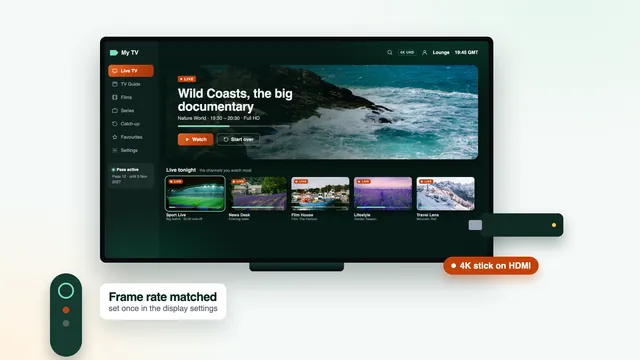
Many streaming devices output 60 frames a second by default, a rate that suits their menus. A 50 fps match squeezed into a 60 Hz signal shows a regular stutter, easiest to spot on a slow pan along the touchline. Frame-rate matching tells the device to switch its output to the rate of the stream, so 50 stays 50.
- Apple TV: in Settings, open Video and Audio, then Match Content. Turn on Match Frame Rate for the judder, and Match Dynamic Range as well, which keeps the menus from being pushed into HDR.
- Android TV, Google TV and Fire TV: the option sits in the device’s display settings on many models, or in the player’s playback settings as auto frame rate. Names vary with the model and the player version.
- Apps on the TV itself: with no separate box in between, a player installed on the set often plays at the stream’s own rate already.
Device-by-device steps are in the Fire TV stick guide and the guide for Samsung, LG and Google TV sets.
Motion smoothing
TVs add frames of their own through a feature each maker names differently: Picture Clarity or Auto Motion Plus on Samsung sets, TruMotion on LG, Motionflow on Sony. It can make football look very fluid, but it also gives the « soap opera » look and leaves a smeared halo round a fast ball. Watch a game with it off, then on its lowest level, and keep whichever you prefer. On many sets, the Filmmaker Mode preset switches it off in one go.
The Sport picture mode on some TVs pushes brightness, sharpness and colour hard; a standard or calibrated mode usually looks more natural over ninety minutes.
Last, keep hardware decoding on in the player and set the device’s output to the TV’s own resolution, 2160p on a 4K set; without hardware HEVC (H.265) decoding, 4K sport can drop frames even on fast broadband.
Finding the game: guide, favourites and catch-up
The seven-day guide doubles as your fixture list. Start times appear in UK time, and if the whole grid sits an hour out after the clocks change in spring or autumn, the player’s EPG time offset brings it back into line.
Build a sport favourites list once: the channels you use for football, the one that carries most of the summer’s cricket, the one you watch darts on. On match day you open that list and ignore the rest. If your player supports several favourites lists, keep sport apart from the family’s everyday channels so nobody scrolls past the other’s choices.
Missed a game? On channels that offer catch-up it stays playable for up to seven days, marked in the guide with a small clock or arrow. Play it from the start, keep your phone out of sight and the result stays a surprise.
Which pass suits a sports household
Every pass carries the same sport channels at the same picture quality. The difference lies in the length and in the number of screens that can play at once, which is where an IPTV subscription sports household should start.
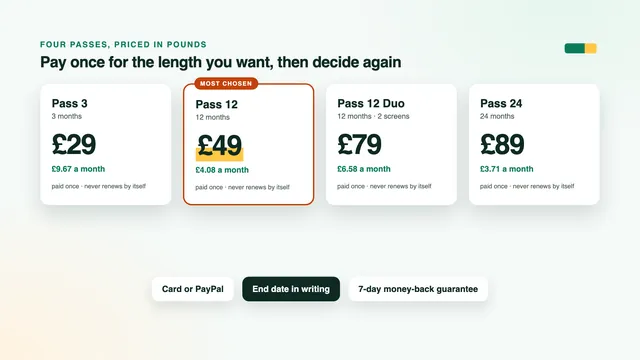
- One TV, one fan. Pass 12 at £49 for 12 months covers a full season and the summer after it, at £4.08 a month. It is the pass we point most homes towards.
- Two people, two games. Pass 12 Duo at £79 plays on two screens at the same time for 12 months: rugby in the lounge while football runs upstairs, or a match on one TV and the children’s channels on the other. That works out at £39.50 per screen for the year.
- Settled for the long run. Pass 24 at £89 lasts 24 months at £3.71 a month, the lowest monthly cost of the four.
- One stretch of the year. Pass 3 at £29 covers 3 months, long enough for a summer of cricket and tennis.
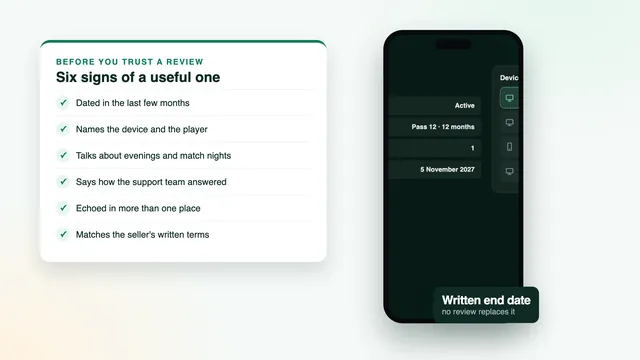
Pay TV is the usual yardstick. At the time of writing, a dish or cable package with sport and films included can cost upwards of £60 each month, with the contract tied up for 18 or 24 months. An IPTV subscription with a written end date works the other way round: one payment by debit or credit card or PayPal, the date printed in the login message, and nothing renews by itself.
Two screens means two screens in one household. Sharing the login beyond your own home, or putting it online, can get it suspended, and a second address needs a pass of its own.
Lay the options out side by side on the plans page, read the multi-room guide if two TVs are the idea, or see why a year is the usual length in the 12-month guide. Once you know which one fits, pick your pass and the login follows about 2 minutes after payment.
A match-night checklist
- The day before. Look at the end date in your login message. Renewing is a fresh order, so if the pass ends this weekend, order the next one in good time; the renewal guide sets out the steps.
- An hour before. Restart the router and the player, then take a speed reading on the TV or stick itself.
- The connection. Plug in the network cable if you have one, or make sure the device is on 5 GHz.
- The house. Pause big downloads, console updates and cloud backups until the final whistle.
- The channel. Open your sport favourites, confirm the start time in the guide and play the channel ten minutes early.
- The phone. Silence score alerts and leave group chats closed until full time.
- If nothing plays. Note the channel, the player and the device, then message us on WhatsApp or by email; help runs 24/7, in English. On a first night with a new device, the setup guide covers the login step by step.
Frequently asked questions
Is every live match at 50 frames per second?
No. Streams play at 50 fps when the source allows it, and some sources send 25 frames. Many players show a stream’s frame rate from an info button while it plays.
How far behind the live broadcast is the picture?
Usually between a few seconds and about half a minute. Each channel differs, and so does each player’s buffer size, so the figure can move a little after a restart. Silence score alerts on your phone if you want to dodge spoilers.
What broadband do two matches at once need?
Add the figures for each screen: about 20 Mb/s for two Full HD streams and about 50 Mb/s for two in 4K, steady and measured on each device. Playing on two TVs together is what Pass 12 Duo is for.
Will the match be in 4K?
Only if the source produced it in 4K; many sport channels arrive in HD or Full HD, and the badge beside the channel shows which. On your side, Ultra HD calls for a 4K screen fed through HDMI 2.0, a device that decodes HEVC in hardware and around 25 Mb/s.
Why does football judder on my TV?
Usually because the device outputs 60 frames a second while the match was made at 50. Turn on frame-rate matching, called Match Frame Rate on Apple TV and auto frame rate in many Android players, then check the TV’s motion smoothing.
Which IPTV subscription sports setup suits two fans in one house?
Pass 12 Duo, which lets two TVs in the same home play at once for 12 months. Each set needs its own steady bandwidth, so take a speed reading on both before the first big game.