Guide
IPTV subscription channels: how 40,000+ are sorted and how to make the list yours
The IPTV subscription channels on your pass come as one list of more than 40,000 live streams, sorted by country first and by category second, with the UK groups at the very top. That order is what makes a list this size usable with a TV remote. This guide explains how the list is laid out, what the picture badges mean, how to cut it down to the groups your household really watches, and how the seven-day guide and catch-up fit around it.
How IPTV subscription channels are sorted
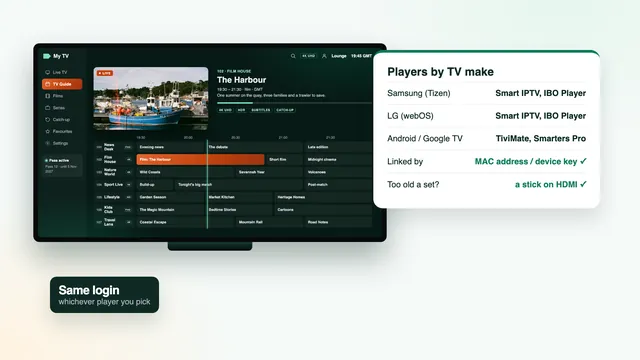
Open the live TV section of any compatible player and you meet two columns. On the left sit the groups, which some players call categories, folders or genres. On the right sit the channels inside whichever group is highlighted. That layout belongs to the player: IPTV Smarters Pro, TiviMate, IBO Player and the rest all read the list your login sends in much the same way.
What we decide is the order of the groups. Country comes first, so every group for one country sits together, and inside each country the groups follow category. The UK block opens the list, which means the first thing under your thumb is British television rather than a long scroll past other nations.
Two parts of your pass live outside this list. The library of 120,000 films and series has its own section in the player, and the seven-day guide is drawn over the live channels rather than listed beside them. If you are new to how a pass works from start to finish, what our IPTV subscription includes sets out the basics, from the login message to the end date.
The order matters more on a TV than on a phone. Each press of the arrow moves one row, so jumping a whole group at a time, and hiding the groups you never open, is what keeps a list this long manageable with a remote.
The UK groups, category by category
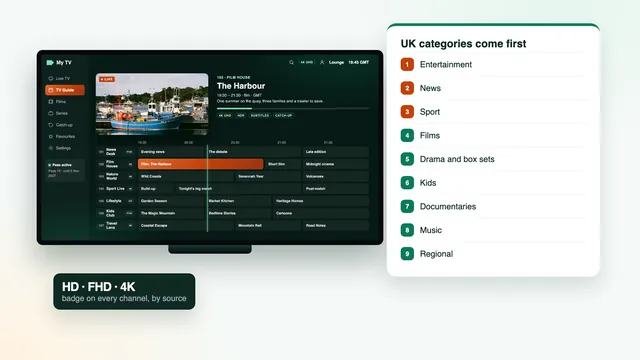
Nine UK categories open the list. The names below are the ones we use; a player may shorten them on screen, but the order stays the same from one device to the next.
| UK category | What it gathers | Worth knowing |
|---|---|---|
| Entertainment | General channels: quiz shows, comedy, soaps, reality and weekend family shows | The busiest group; put your regulars in favourites first |
| News | Rolling bulletins from home and abroad, plus business and weather | Useful as the only visible group on a kitchen screen |
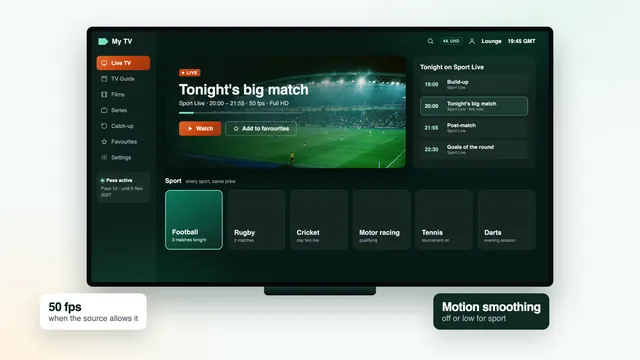
| Sport | Live matches, studio shows, previews and highlights | Frame rate, delay and match-night broadband are in the sport guide |
| Films | Channels showing films to a timetable | Separate from the on-demand library of 120,000 titles |
| Drama and box sets | Crime, period pieces, thrillers and channels built around series | Pairs well with catch-up when an episode slips past |
| Kids | Pre-school and older children’s channels | Worth leaving on its own on a child’s TV |
| Documentaries | Nature, history, science and true crime | Repeats are common; the guide shows the next airing |
| Music | Music videos, charts and live sessions | Easy to leave running in the background |
| Regional | Regional versions of national channels, with local news for the nations and English regions | Pick the area you live in, or the one you grew up in |
Films deserve a separate word. The Films group holds channels that broadcast to a timetable, so you join a film at whatever point it has reached. Titles you start from the opening scene, pause and pick up tomorrow belong to the library, which you reach from the films or movies section of the player.
Regional is the group people overlook. National channels in Britain run different versions for Scotland, Wales, Northern Ireland and the English regions, mostly for local news and a few programmes of local interest. If the evening bulletin on the main version is about somewhere else, the version for your area is the one to add to favourites.
Beyond the UK block: other countries
Below the UK block the pattern repeats for other countries, each with its own set of categories. A large country may fill a dozen groups; a smaller one may hold everything in a single group.
This part of the list counts most in two kinds of home. One is a family where another language is spoken, which wants news and entertainment from home alongside British TV. The other is a sports fan who follows a team abroad and likes to hear the commentary from that country.
Line-ups change as sources are added or retired, so we do not publish a country-by-country count of IPTV subscription channels. If one language or one country is the reason you are buying, ask the team before you order: say what you want to watch and you will get a plain yes or no.
Reading the HD, FHD and 4K badges
Next to many channel names sits a short badge: HD, FHD or 4K. It describes the stream as the source delivers it. You cannot change it in a setting, and it is not a promise about every programme; a channel tagged 4K can still air an older show that was made in HD.
Some channels appear more than once, in different versions. When that happens, choose by the screen and the connection you actually have rather than by the biggest number.
| Badge | Picture | Steady speed on the device | What the rest of your kit needs |
|---|---|---|---|
| HD | High definition, usually 720p | roughly 5 Mb/s | Any TV, stick, tablet or phone |
| FHD | 1920 by 1080 pixels | roughly 10 Mb/s | A Full HD or 4K screen |
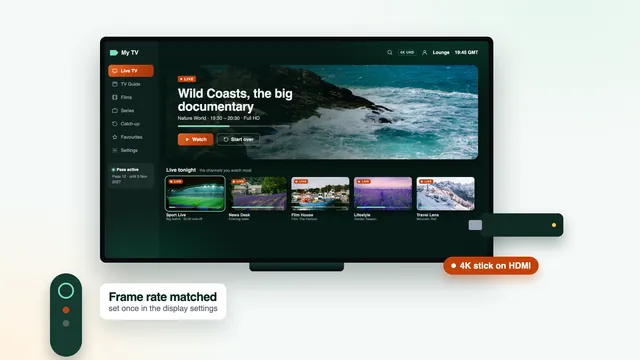
| 4K | Ultra HD, 3840 by 2160 pixels | roughly 25 Mb/s for each screen | A 4K set or streaming device, HDMI 2.0 or later on both socket and lead, and hardware HEVC (H.265) decoding in the player |
HDR is a separate matter from resolution. HDR10, HDR10+ and Dolby Vision only appear when the source carries them and when the player and the TV both handle the same format; Dolby Atmos sound follows the same rule. The badge alone does not say whether a stream has HDR, so if a picture suddenly looks washed out or too dark, look at the HDR setting on the device before you blame the channel.
You will not find a tally of 4K channels anywhere on this site. Sources move between resolutions, and a figure printed today could be wrong next month. Treat 4K as a bonus where it exists, and judge the list by the HD and FHD channels you will watch most evenings.
Shrink the list: favourites, hidden groups and search
Nobody watches 40,000 channels. Most homes use a few dozen at most, and the quickest win after the first login is to put those within two clicks. Most players offer the same three tools, even when the menus carry different names.
Favourites
In most players you add a channel to favourites by highlighting it and holding the OK button, or by opening its options menu, then picking the heart or the star. Favourites then show as a group of their own, usually near the top. Some players allow several favourites lists, handy for keeping the children’s channels apart from news and sport.
Hiding groups you never open
Hiding makes the bigger difference. Players that support it, under names such as hide, manage groups or edit categories in the settings or the long-press menu, let you untick whole countries or categories. They stay on the server and return the moment you tick them again, so you can trim hard without risk. On an older stick, a shorter list also scrolls faster and the guide fills in sooner.
No hide button in your player? Parental control often stands in: lock a group behind a PIN and it stays shut until someone types the code. The same trick keeps a child’s TV to the Kids group.
Search
Search is the fastest route to a channel you only watch now and again. Type a few letters rather than the full name, because names in the list often carry a country prefix or a quality tag. Many players search the guide as well, so you can look up a programme instead of a channel; how well that works depends on the player.
On a Fire TV stick or an older Android box, the whole list can take a little while to load the first time. Hiding countries helps, and so does picking hardware with some speed in hand; the Firestick guide covers which stick models are worth using.
The 7-day TV guide on UK time
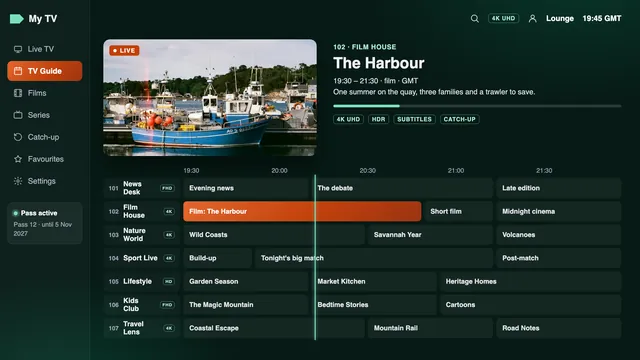
The guide, or EPG (electronic programme guide), loads on its own when you sign in with the Xtream details: username, password and server address. It runs seven days ahead and shows UK time, so a programme listed at 21:00 starts at nine in the evening, whether you are in Cardiff or Carlisle.
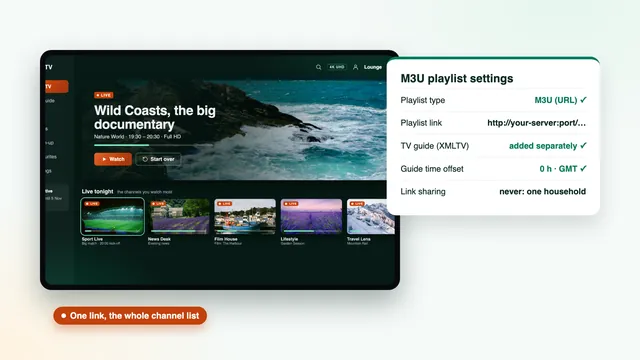
Sign in with the M3U playlist instead and the player also needs the TV-guide address. That is the XMLTV link in your login message, pasted into the player’s EPG field; the M3U link guide walks through it.
When the clocks change
Britain keeps GMT through the winter and BST, an hour ahead, through the summer. The clocks go forward on the final Sunday in March and back on the final Sunday in October. Most players follow the change unaided, yet once in a while a guide ends up an hour early or an hour late after the switch.
The fix lives in the player’s settings, under a name such as EPG time offset, EPG timeshift or guide offset. Shift it an hour forward or back until the programme on screen matches the block the guide highlights. Check the device’s own clock too: its time zone should be London, or both the guide and catch-up times will be off.
A few smaller channels show no listing at all, yet still play. If one you watch daily loses its guide, refresh the EPG from the player’s settings, and if that fails, tell us the channel and the player.
Catch-up: up to seven days back
Catch-up plays a programme that has already aired, straight from the guide. It works on the channels that offer it, and on those the window usually reaches back seven days, though some keep less. The channel list does not always flag catch-up, so the guide is where to look.
A programme you can replay usually carries a small clock or a circular arrow. Scroll left into the past, select it, and it starts from the beginning with pause and rewind. Some players also put a Catch up section on the home screen that lists only the channels with an archive, which saves hunting.
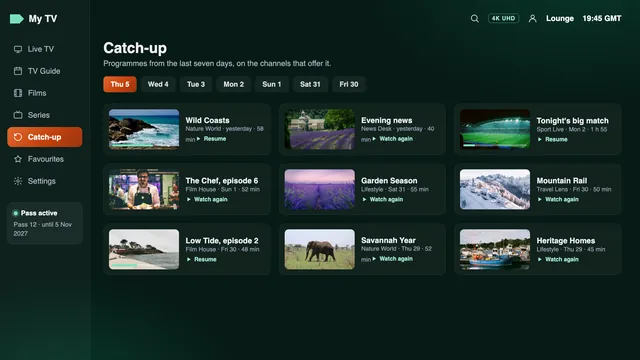
Catch-up streams draw the same bandwidth as live ones, so the badge table above still applies. For anything you want to start at any hour, look in the film and series library first; it is not tied to a broadcast date.
Same channels on every pass: choosing yours
The IPTV subscription channels, the library and the picture quality are identical on all four passes. What changes is how long the access lasts and how many screens can play at the same moment.
- Pass 3: 3 months for £29, one screen, for a single season or a shorter stretch of the year.
- Pass 12: 12 months for £49, one screen. Spread over the year that is £4.08 per month, close to 13p per day, and it is the pass this site recommends.
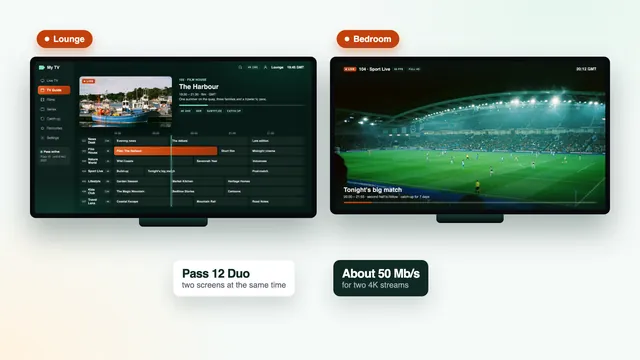
- Pass 12 Duo: 12 months for £79, two screens at once, so the news can run in the kitchen while a film plays in the lounge; the multi-room guide covers the broadband two TVs need.
- Pass 24: 24 months for £89, one screen, the lowest monthly cost at £3.71.
You settle a pass in one go with debit or credit card or PayPal; it carries its end date in writing and does not renew by itself. You can compare the passes side by side or go straight to the four passes on the home page. The login arrives about 2 minutes after payment, and the setup guide takes you from that message to the first channel on each kind of device.
Frequently asked questions
Are the IPTV subscription channels the same on every pass?
Yes. Pass 3, Pass 12, Pass 12 Duo and Pass 24 all unlock the identical 40,000+ live channels and the 120,000-title library. What sets them apart is how many months they run and whether one or two screens can play together.
Can I remove the countries I never watch?
Most players let you hide whole groups, either in their settings or from a long-press menu. Hidden groups stay on the server, so you can bring them back at any time. Where there is no hide option, a favourites list does the same job day to day.
The guide shows the wrong times. How do I fix it?
This usually follows a clock change in March or October. Adjust the EPG time offset or timeshift setting in the player by one hour, and check that the device’s time zone is set to London.
Is every channel in 4K?
No. Each badge shows what the source delivers: HD, FHD or 4K. Getting a 4K picture onto the wall also takes a 4K set, HDMI 2.0 throughout, hardware HEVC decoding and a steady 25 Mb/s or so for that one screen.
How far back does catch-up go?
Up to seven days on the channels that offer it, and less on some. Look in the guide for a little clock or circular arrow beside a past programme: that mark means it can be played again.
Do my favourites survive a renewal?
Renewing brings a new login, typed into the same player. If that player links favourites to the playlist, you may need to add them again, so keep a written list of the channels you use.