
The login message
Have it open on your phone next to you. It carries the three Xtream details, the M3U and XMLTV links and the end date, and it reaches you within 2 minutes of paying.
Setup
This IPTV subscription setup runs the same way on any screen: put a player app on the device, enter the login we send, let the channels and guide load, then check a handful of settings so the picture and the guide’s clock are right. Between devices, only the app store and the names of the menus change.
Before you start
Collect these first and the first evening tends to go smoothly; most take less time than finding the remote.
Have it open on your phone next to you. It carries the three Xtream details, the M3U and XMLTV links and the end date, and it reaches you within 2 minutes of paying.
Smart TV, streaming stick, Android box, Apple TV, phone or computer. Run any waiting system update first; out-of-date firmware often stops a player from opening or makes it crash on launch.
Each device has its own store: Google Play, the App Store or the TV maker’s shop. We have no app of our own, so any player able to read an Xtream login or an M3U link is fine.
Plan on roughly 5 Mb/s for HD, twice that for Full HD and 25 Mb/s for each television showing 4K, without dips. Take the reading on the TV or stick that will play, because a phone near the router flatters the result.
A network cable wins every time; next best is 5 GHz Wi-Fi, ideally within a room of the router. Plenty of TVs have a 100 Mb/s network socket, and that is ample for a stream.
A 4K set, or a 4K box or stick in an HDMI 2.0-or-later socket with a suitable cable, and a player whose hardware decodes HEVC (H.265).
Step by step
Every player arranges its menus differently, yet the sequence below holds for all of them.
Look in the device’s store for IBO Player, XP IPTV, TiviMate, Smart IPTV or IPTV Smarters Pro. Before you install, read the developer’s name under the app: copycats with almost the same name are about.
On the opening screen, pick the option labelled Xtream Codes, Xtream Codes API or Login with Xtream. Only fall back on the playlist or M3U option if the player offers nothing else.
Enter it character for character: http:// at the front, then the address, then a colon and the port number, along the lines of http://your-server:port. A forgotten port or a stray space is behind many refused logins.
Capitals matter in both. Some players also want a profile name; anything will do, such as the room the TV lives in.
The first load fetches the live channels, the films, the series and a week of TV guide. Leave it alone until it finishes; on a modest stick the first load is always the slowest.
Open a UK channel, compare the guide with your phone’s clock and save a few favourites. Guide an hour adrift? Shift the player’s EPG time offset by an hour in the right direction.
Typing an address with a TV remote is slow and error-prone. Plug in a USB keyboard where the device allows it, or use the phone remote app many TV and stick makers provide, and paste the details from your message.
Login types
Your message holds both. Begin with the Xtream details and keep the playlist link for the players that insist on it.
| Xtream Codes login | M3U playlist link | |
|---|---|---|
| What you enter | Server address, username and password | One long web address |
| TV guide | Arrives on its own: seven days, UK time | Needs the XMLTV link added |
| Films and series | In menus of their own | Often merged into one long list, player by player |
| Catch-up | Marked in the guide where offered | Varies with the player |
| Players that ask for it | IPTV Smarters Pro, TiviMate, IBO Player, XP IPTV | VLC, Kodi with PVR IPTV Simple Client, Smart IPTV |
| Suits | The TV, stick or box you use every night | Laptops, and players that accept nothing else |
Either route opens the same pass and the same list. What differs is how much tidying the player can do for you. With the Xtream details, the app requests the categories, the guide and the library one by one, which keeps menus orderly and fills the guide in without help.
The M3U link delivers everything as a single file. Choose it for VLC on a laptop, for Kodi, and for TV apps that only accept a playlist address; add the XMLTV link in the player’s EPG settings and the guide follows. Our M3U playlist guide deals with players that are fussy about the format.
Your device
Find your device here. The longer walk-throughs for sticks, televisions and the playlist link sit in the guides linked from each card, which keeps this IPTV subscription setup page light on menus.
At the time of writing, the Amazon Appstore does not list IPTV Smarters Pro. It goes on through the Downloader app instead, once you let Downloader install unknown apps, and the download link comes in your login message. Certain newer sticks run Vega OS and block this route. The Fire TV stick guide covers every menu.
Whether IPTV Smarters Pro shows up in the TV’s own store varies with model and country. The usual alternatives are IBO Player and Smart IPTV, which needs a one-off activation on each set; both tie your playlist to the television’s MAC address or device key. The Smart TV setup guide works through the families of sets.
Televisions and boxes with Google Play take XP IPTV, TiviMate (free, with optional paid extras) or IPTV Smarters Pro directly from the store. Stick to the store copy rather than an APK passed round on a forum, which may hide malware.
Here every player comes from the App Store, which lists VLC and IPTV Smarters Pro at the time of writing. An app running on the Apple TV itself is steadier than AirPlay mirroring from a phone, which puts an extra link in the chain.
VLC plays the M3U link as it is, and Kodi reads it once you add its PVR IPTV Simple Client. On an Apple-silicon Mac, the App Store version of IPTV Smarters Pro is a third choice.
Google Play carries XP IPTV and IPTV Smarters Pro. A phone is a quick place to prove the login works before you settle at the TV, and a tablet makes a fair second screen in the kitchen.
The login may sit in players on several devices around the house. A one-screen pass plays on one of them at a time, and Pass 12 Duo on two together. The guide to watching in two rooms covers a second TV; if you have not ordered yet, compare the four passes first.
TV guide
Sign in with the Xtream details and the week-long guide turns up by itself, already on UK time. In a player running from the M3U link, copy the XMLTV link from your message into its EPG or TV-guide setting and ask it to refresh.
British clocks go forward to BST on the last Sunday in March and fall back to GMT on the last Sunday in October; on 5 November 2026 the country is on GMT. A few players hang on to the old offset after the change, so every programme looks an hour early or late. Find the setting named EPG time offset or timeshift and nudge it by one hour; leave everything else alone.
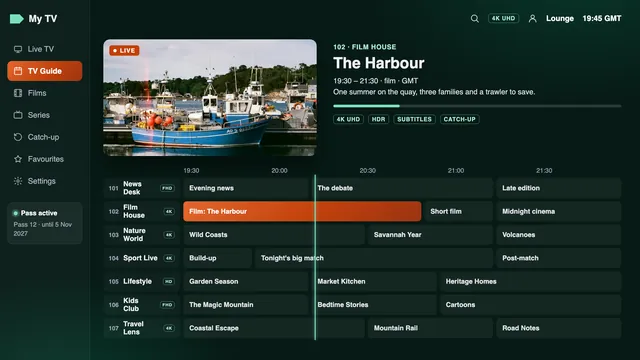
Catch-up lives in the same grid. Where a channel offers it, usually for up to a week, programmes already shown wear a tiny clock or arrow, and some players add a separate Catch up menu. Our channel list guide explains how the categories are ordered and how to keep favourites short.
Picture
Put the device’s video output on Auto, or on the highest resolution the TV accepts. A stick left at 1080p will never show 4K, whatever the channel sends. On a 4K set, also turn on the enhanced or UHD signal option for the HDMI input in use; until you do, many TVs hold that input below 4K.
In the player’s settings, choose hardware decoding whenever there is a choice. Software decoding is fine on a computer, but on a stick it makes HEVC streams stutter. When one channel gives you sound and a black screen, changing the decoder for that channel usually brings the picture back.
Apple TV owners should go to Settings, then Video and Audio, then Match Content, and switch both Match Dynamic Range and Match Frame Rate on. The TV then stops forcing HDR onto every menu, and 50 frames a second sport loses its judder. HDR10, HDR10+, Dolby Vision and Dolby Atmos only show up when the programme carries them and the TV and player both cope.
Before a big match, read our sport viewing guide: it covers how far behind the broadcast a stream runs and the broadband that keeps a busy night smooth.
Quick fixes
When an IPTV subscription setup goes wrong on the first evening, the cause is usually one character, one setting or one crowded Wi-Fi band.
| Symptom | Usual reason | Fix |
|---|---|---|
| Login refused, or « authorisation failed » | A typo, no http:// or port, a stray space | Paste the details from the message again and check the capitals |
| Channels appear, guide stays blank | M3U link entered without the XMLTV link | Add the XMLTV link under EPG settings and refresh |
| Guide an hour early or late | Clocks went forward or back (BST or GMT) | Shift the EPG time offset or timeshift by one hour |
| Picture pauses in the evening | Busy 2.4 GHz Wi-Fi, or a stretched line in the 19:00–23:00 rush | Restart router and player, switch to cable or 5 GHz, retest the speed on the device |
| Sound, but a black screen | The decoder cannot handle that stream | Swap between hardware and software decoding |
| No 4K on a channel marked 4K | Output stuck at 1080p, the wrong HDMI socket, or no HEVC support | Set output to Auto, use an HDMI 2.0 socket, confirm the device decodes HEVC |
| Second TV cuts off the first | Two streams on a one-screen pass | Play one at a time, or move to Pass 12 Duo for two together |
| Login no longer works at all | The end date in your message has gone by | Order again and enter the new details in the same player |
A live channel runs a little behind the broadcast, from a few seconds up to around half a minute; that comes with streaming and is not a fault. When the router is a long way from the TV, powerline adapters or a mesh system often help.
Still stuck?
If none of the fixes above work, message us on WhatsApp or by email; someone is there 24/7 and answers in English. Mention the device and player, describe what the screen shows (a photo helps) and include the username from your message. We then go through the settings with you one by one until the IPTV subscription setup is complete.
If no device in your home will show a picture despite that help, the 7-day guarantee applies. The contact page lists what else to include and every way to reach us.
FAQ
Most of the time goes on installing the player and typing the server address; the login itself is accepted straight away. A Fire TV stick adds a few screens for letting Downloader install the player, and the stick guide covers them.
IPTV Smarters Pro covers the widest spread of devices. TiviMate is a favourite on Android TV and Fire TV, Smart IPTV and IBO Player on Samsung and LG televisions, and VLC on computers. All of them read the same login.
Most cost nothing to install. IPTV Smarters Pro offers an optional Premium upgrade inside the app, TiviMate sells premium options, while Smart IPTV is unlocked once per television; store prices vary. We do not sell apps.
Yes, on devices in your own home. A one-screen pass plays on one of them at a time and Pass 12 Duo on two together. If the login is used by another household, it can be suspended.
Most often the switch between GMT and BST has happened and the player kept its old offset. Move the EPG time offset or timeshift by an hour. If the guide is blank instead, add the XMLTV link and refresh.
In the message with your username and password, under the server address, alongside the XMLTV link for the guide.
Renewing brings fresh login details. Open the same player, swap the old details for the new ones and let the lists reload; nothing needs reinstalling.
Use the device’s own store whenever the player is listed there. On a Fire TV stick, use the link that comes with your login. APK files from forums can carry malware, so leave them alone.
Choose a length, pay once and you can follow this IPTV subscription setup tonight. The date it stops is in your message, and if no screen in your home will play it despite our help, the 7-day guarantee gives you your money back.