Guide
IPTV Subscription M3U Link: Players, Guide and Privacy
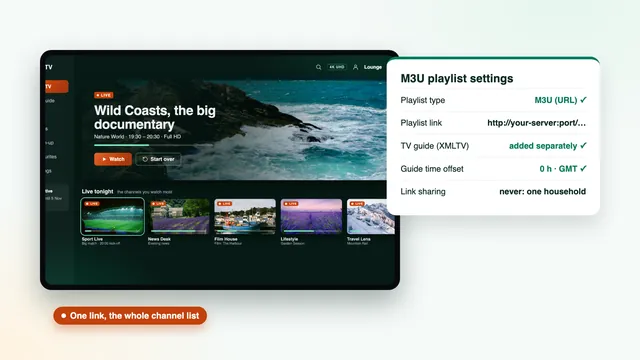
Your IPTV subscription M3U link is the one long web address in your login message that hands a player the whole channel list in a single file. Most players prefer the three-part Xtream login, but some, from Smart IPTV on a Samsung to VLC on a laptop, only understand the link, and that is where this guide helps: what the link contains, which players need it, how to add the guide and why it must stay private.
What the IPTV subscription M3U link is
Every order produces one message, which lands on WhatsApp or in your inbox within 2 minutes of payment. It opens two doors to the same access. The first is the Xtream Codes login, three details in all: the name you sign in with, its password and the address of the server. The second is the M3U playlist link. Next to them come the XMLTV link for the TV guide and the end date of your pass.
M3U began as a playlist format for music files and became, in streaming, a text list of channels, each with a name, a group and an address to play. Your link asks the server to build that list on the spot, for your account.
A typical link has this shape, with your own details in place of the placeholders:
http://your-server:port/get.php?username=your-username&password=your-password&type=m3u_plus
The exact form in your message may differ. What matters is that the server, your username and your password all sit inside it in plain text, which is why it has to stay private (more on that below). For the bigger picture, how an IPTV subscription works on this site covers the single payment, the written end date and the login sent in minutes.
Inside the playlist: what a player reads
Opened in a desktop browser, the link downloads a plain text file (delete it afterwards, as it holds your login). Its layout explains most of what a player shows you.
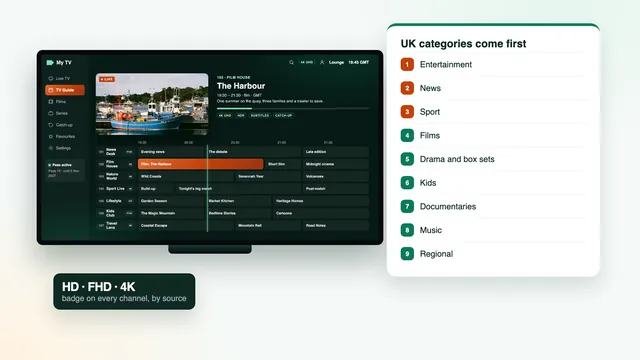
#EXTM3Uon the first line marks the file as a playlist. A file without it is usually an error page, not a channel list.#EXTINFopens each entry, followed by a duration (-1 for a live stream) and the channel name.tvg-idis the label the guide uses to pair programmes with a channel. When it is blank, or differs from the guide’s label, that channel shows no programme details.tvg-logopoints to the channel logo, andgroup-titleis the category. That is why UK channels arrive grouped as entertainment, news, sport, films, drama, kids and so on.- The line after each entry is the stream address itself, which carries your login details too.
With 40,000+ live channels the file is large. A phone or a recent box reads it in seconds; an older TV or a low-cost stick may take a minute or give up. The Xtream login avoids the problem, because the player asks the server for one category at a time instead of swallowing the whole list in one go.
Add the playlist as a link, which players call remote, URL or online playlist, and never as a downloaded file. A link is read again each time the player refreshes, so changes to the line-up reach you; a saved file freezes the list on the day you downloaded it.
Xtream login or M3U link: which players need which
Both routes reach the same channels. The difference lies in what the player can do with them.
| Player | What it takes | Devices | TV guide |
|---|---|---|---|
| Smarters Pro | Xtream login (preferred) or M3U link | iPhone, iPad, Apple TV, Apple silicon Macs, Android; Fire TV through Downloader | Arrives with the Xtream sign-in |
| TiviMate | Xtream login or M3U link | Android TV, Google TV, Fire TV | Automatic on Xtream; add the XMLTV link on M3U |
| IBO Player | Playlist attached to the MAC address and device key on its website | Smart TVs and other devices | Depends on the version |
| Smart IPTV | M3U link, sent from its website to the TV’s MAC address | Samsung, LG and other smart TVs | Matched by the app itself |
| VLC | M3U link only | PC, Mac, Android, iPhone, iPad | No guide grid |
| Kodi with PVR IPTV Simple Client | M3U link | PC, Mac, Android boxes and more | XMLTV link in the add-on settings |
As a rule, use the Xtream login wherever a player offers it. Films and series then arrive in their own sections with posters, catch-up appears on the channels that offer it, and the 7-day guide loads with no extra step. Through the M3U link, many players show films and series as long flat lists or leave them out, catch-up depends on the player, and the guide needs its own link.
The M3U link is the right tool when a player accepts nothing else, when you want a quick look on a computer, or when you build your own setup in Kodi.
The device-by-device steps for the Xtream route are on the setup page. Samsung and LG owners with a MAC-linked player will find the television side in the Smart TV guide, and anyone on Amazon hardware can follow the Fire TV stick guide.
Adding the TV guide (XMLTV) to an M3U playlist
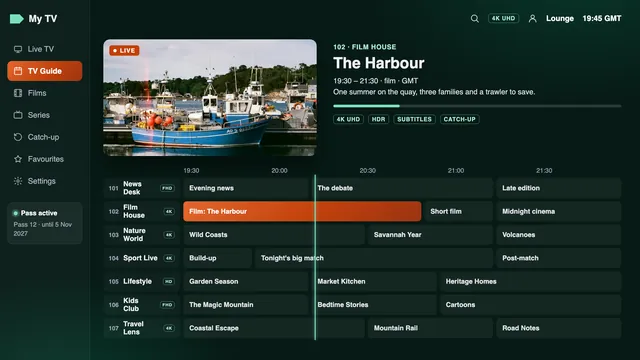
On the M3U route the guide is a second link. XMLTV is a format that lists programmes by channel and by time; the address in your message covers 7 days, in UK time. An IPTV subscription M3U playlist without that second link shows channel names and nothing else.
- Add the M3U link as a playlist first and let the channels load completely.
- Find the player’s EPG or TV guide source setting. In TiviMate it sits under Settings › EPG; in Kodi it is in the PVR IPTV Simple Client settings; MAC-linked players may offer a guide field on their website.
- Paste the XMLTV link exactly as sent, save, and start a guide update.
- Wait: a week of programmes for thousands of channels takes several minutes the first time. A daily update is enough after that.
Channels still empty after the update are usually ones whose tvg-id has no partner in the guide. Most players let you pair a channel with a guide entry by hand; do it for the handful you watch and leave the rest.
When British clocks go forward in spring or back in autumn, a player can show the listings an hour out. The cure is its EPG time offset or timeshift setting, moved by one hour. Kodi’s add-on has an EPG time shift of its own for the same job.
VLC and Kodi: the link on a computer or box
VLC for a quick check
VideoLAN’s free VLC reads the M3U link on Windows, Mac, Android, iPhone and iPad. With no guide grid or catch-up it is no lounge player, but it quickly shows whether your access works while a TV app is acting up.
- On a computer, open Media › Open Network Stream (File › Open Network on a Mac). On a phone or tablet, use the network stream option in the app.
- Paste the M3U link and choose Play.
- Open the playlist view to see every channel, then select one. The search box in the playlist saves scrolling through thousands of entries.
If a channel plays in VLC but not on the TV, the access is fine and the problem lies with the TV, its player or its connection. If nothing plays in VLC either, check that the whole link was pasted, then get in touch.
Kodi with the PVR IPTV Simple Client
Kodi plays nothing live on its own. The PVR IPTV Simple Client add-on, from Kodi’s built-in add-on repository, turns the M3U link and the XMLTV link into a TV section with channels and a guide.
- Open Add-ons › Install from repository › PVR clients, choose PVR IPTV Simple Client and install it.
- Open the add-on’s settings with Configure. On recent Kodi versions you first add a configuration, which also lets you keep more than one playlist.
- On the General tab, choose Remote path (internet address) as the location, then paste the M3U link into the field below it.
- On the EPG tab, make the same choice and paste the XMLTV link. If the times are an hour out, the EPG time shift sits on that tab too.
- Save, then restart Kodi. The channels appear under TV, and the guide fills in over the next few minutes.
Kodi suits a computer or an Android box where you want your own films and live TV in one place. On a Fire TV or a television, Smarters Pro or TiviMate on the Xtream login is lighter and quicker to live with.
Why the M3U link must stay private
The link is your login: anyone holding it can paste it into a player and watch on your pass.
- On a one-screen pass, a second person playing from the link takes your screen, and your picture stops or shows an error.
- A login can be suspended if it is passed to people beyond your home or published where anyone can read it.
- Websites that offer to check or convert M3U links keep what you paste. Do not put your link into one.
- Screenshots of player settings, posted on a forum to ask for help, often show the link in full. Crop or blur it first.
- The XMLTV link usually carries your details as well, so give it the same care.
At home, the safest way to move your IPTV subscription M3U link between devices is to copy it from the original message on the device that needs it, rather than forwarding it around group chats. If you think it has leaked, tell the team straight away through the contact page.
When your pass ends, the link stops
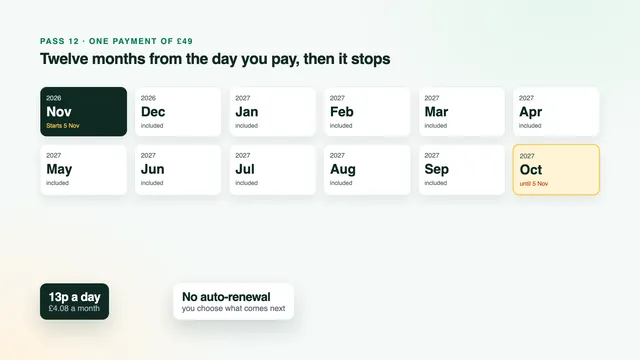
Each pass lasts until the date printed in your login message, and no payment is taken again after it. On that date the M3U link stops returning channels. Players react in different ways: some show an empty list, some an authorisation error, and some keep the last list they saved but play nothing.
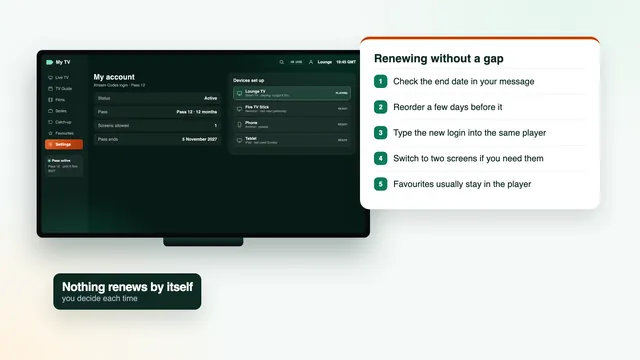
Renewing means placing a new order. The team sends a new login, and because the M3U link is built from the login, a new playlist link and a new guide link come with it. Do not expect the old link to come back to life.
- In each player, delete or edit the old playlist and paste the new M3U link.
- Replace the XMLTV link wherever you added the old one.
- On a MAC-linked player, send the new link from the player’s website to the same MAC address.
- Restart the player so it drops the cached list.
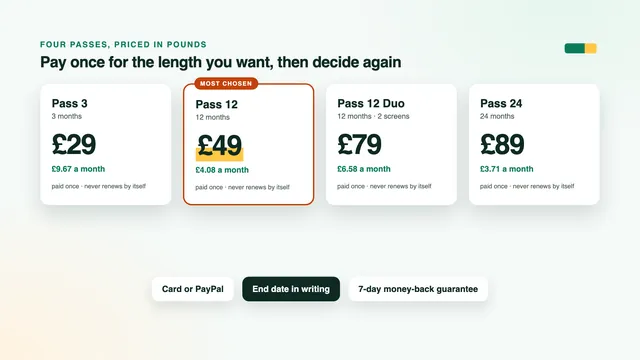
Ordering a few days ahead avoids a blank weekend. The renewal guide sets out the timing, and a twelve-month pass means swapping links once a year rather than every quarter. Choose your next pass from the plans, or compare lengths and screens on the plans page first.
M3U problems and what fixes them
| What you see | Likely cause | First fix |
|---|---|---|
| Playlist not found, or an empty list | Part of the link is missing, often the end | Paste the whole link again from the message |
| Player stuck on loading | A large playlist on a slow TV or stick | Wait a few minutes once; if it fails again, use the Xtream login in a player that offers it |
| Channels but no programmes | The XMLTV link is missing, or tvg-id does not match | Add the XMLTV link; pair the channels you watch by hand |
| Listings an hour early or late | The switch between GMT and BST | Shift the EPG time offset by an hour |
| Films and series missing or in one long list | The player reads M3U entries as live channels | Use the Xtream login for films and series |
| Logos missing | Logo addresses slow to load | Harmless; the channels still play |
| A list that never changes | The playlist was added as a downloaded file | Remove it and add the link as a remote playlist |
| Worked last month, nothing today | The pass reached its end date | Check the date in your message; order again for a new login |
Most IPTV subscription M3U problems come down to a link not pasted whole, or a player asked to do with a playlist what it does better with the Xtream login.
Wondering what other buyers say about a seller’s links and guide? How to read reviews lists the checks worth making yourself, before and after you order.
Frequently asked questions
Where do I find my IPTV subscription M3U link?
In the login message that reaches you 2 minutes after payment, on WhatsApp or by email, next to the username, password, server URL, guide link and end date. Search the message for M3U if it is not obvious, or ask the team to send it again.
Is the M3U link the same as the Xtream login?
It reaches the same channels with the same account, in a different form. The Xtream login is three separate fields that the player uses to fetch categories, films, series and the guide; the M3U link is one address that returns the channel list as a file.
Can I use the M3U link and the Xtream login at the same time?
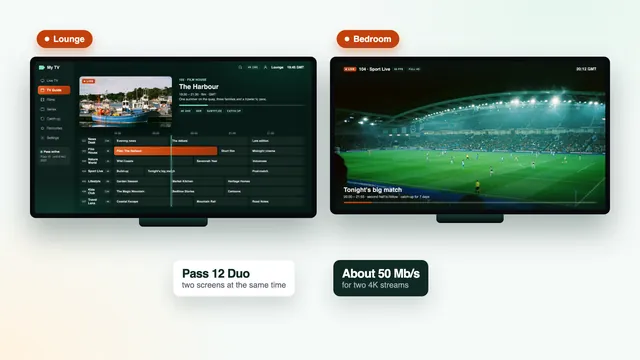
Yes, on different devices, as long as you stay within your screen allowance. Both draw on the same account, so two streams at once need a two-screen pass such as Pass 12 Duo.
Why does my M3U playlist have no TV guide?
On the M3U route the guide is a separate XMLTV link. Add it in the player’s EPG source setting, start an update and give it a few minutes. Channels still blank after that usually need pairing by hand.
Will my M3U link change when I renew?
Yes. A renewal is a new order with a new login, and the link is built from the login, so you receive a new M3U link and a new guide link. Replace both in every player you use.
Can I open the M3U link on a computer?
Yes. VLC opens it on Windows and Mac, and Kodi with PVR IPTV Simple Client adds a guide. VLC suits a quick check rather than an evening’s viewing, as it has no guide grid.