Guide
IPTV Subscription Smart TV Guide: Players, HDR and Settings
An IPTV subscription Smart TV setup needs no extra box when the television’s own store carries a compatible player: you install it, link your login and watch. Which player you can use depends on the system inside the set, so this guide goes through Samsung, LG and Android or Google TV one by one, then covers HDR, picture modes, the network and the cases where a stick on HDMI is less trouble.
IPTV subscription Smart TV basics
A smart TV is a small computer behind a large screen, and three systems run most of the sets sold in the UK: Tizen on Samsung, webOS on LG, and Android TV or Google TV on many other brands. Each has its own store, its own players and its own way of taking your login.
| TV system | Found on | Players to look for | How the login goes in | HDR formats |
|---|---|---|---|---|
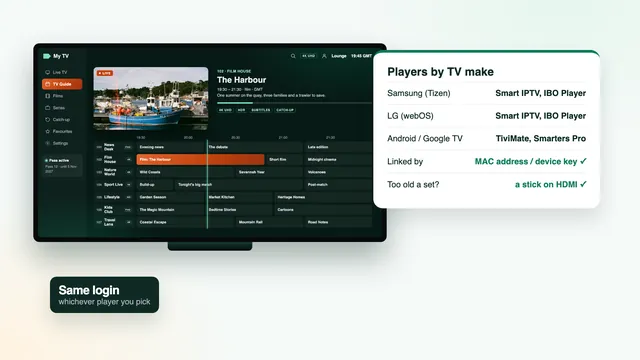
| Tizen | Samsung | IBO Player or Smart IPTV, and Smarters Pro for certain models and regions | Playlist link added on the player’s website against the set’s MAC (Smarters: Xtream login) | HDR10, HDR10+; no Dolby Vision |
| webOS | LG | The same pair, with Smarters Pro for certain models and regions | As on Samsung | HDR10; Dolby Vision on OLED and QNED |
| Android TV, Google TV | Sony and several other makers | Smarters Pro, TiviMate, XP IPTV, VLC, Kodi | Xtream login typed into the app, or the M3U link | Depends on the model |
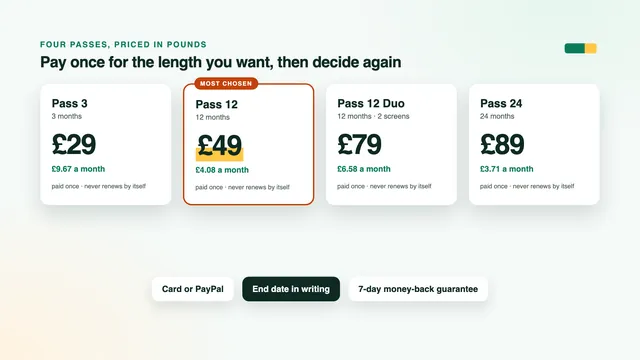
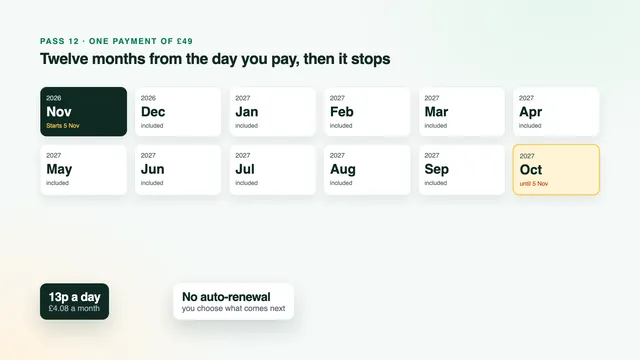
Whichever row is yours, the access behind the app does not change: the same 40,000+ live channels, 120,000 films and series and 7-day guide. If you have not chosen yet, the plans on the home page set out all four passes, and what an IPTV subscription means here explains the end date in writing and why nothing renews on its own.
Samsung and LG: Smart IPTV, IBO Player and Smarters Pro
Samsung sets (Tizen)
Samsung keeps its apps in the Apps panel of the Smart Hub. Press Home, open Apps and use the magnifying glass to search by name. What appears depends on the model and on the country the set is registered in, which is why two neighbours with Samsung TVs can see different lists.
- Smart IPTV asks for a single activation for each television, paid to the app maker. Its opening screen shows the set’s MAC address, and the playlist is sent to that address from the app’s website.
- IBO Player displays two identifiers, a MAC address and a device key. The playlist is attached to that pair on the player’s website, and the set collects it when you reopen the app.
- Smarters Pro turns up on some Samsung models in some countries. Where it does, you type the Xtream login straight into the TV, as on a phone.
Samsung sets accept a USB keyboard in a spare socket, which beats the on-screen keyboard for a password. If a player starts closing after months of good service, check for both an app update and a TV software update before anything else.
LG sets (webOS)
LG’s store is called LG Content Store on older sets and simply Apps on newer ones, and it sits on the Home dashboard. Search, install, and the player joins the row of apps along the bottom of the screen. The same players carry most LG homes, and the Magic Remote helps with them, because its pointer lets you click letters directly instead of stepping across the keyboard.
With Quick Start+ on, an LG set never fully powers down from the remote; it rests in a standby that keeps apps in memory, frozen ones included. When a player hangs on its loading screen, unplug the set for a minute instead.
Android TV and Google TV sets
Sets running Android TV or Google TV get their apps from Google Play, built into the TV. That gives them the widest choice of the three systems, and the login goes in exactly as it would on a phone or a box.
- Smarters Pro by Tech Smarters Private Limited: free to download, with an optional in-app Premium whose price varies by store. Choose the Xtream Codes login when it asks.
- TiviMate: free, with paid premium options, and built around a guide grid that suits a remote. It accepts the Xtream login or a playlist link.
- XP IPTV: another Android player, worth a look if the first two do not suit you.
- VLC and Kodi: VLC opens the M3U link for a quick look at the channels, while Kodi shows live TV only once PVR IPTV Simple Client has been added to it.
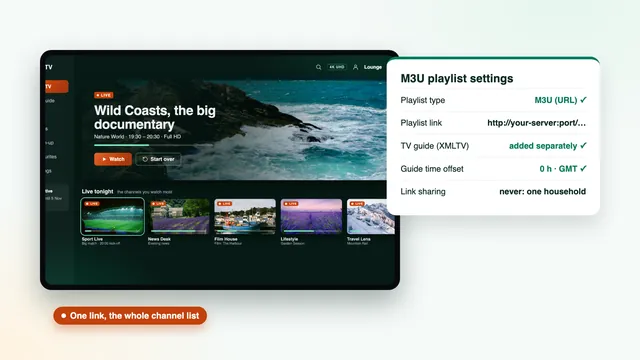
For typing, the Google TV app on your phone works as a remote with a keyboard once phone and TV share a network. Some of these players can also use the M3U link instead of the Xtream login. When that makes sense, and how to add the guide to a playlist, is covered in the M3U playlist guide.
Pairing a player with the TV’s MAC address
Smart IPTV and IBO Player never ask you to type a login on the television. Each set has an identity instead: its MAC address, six pairs of characters separated by colons, to which IBO Player adds a device key of its own. You attach your playlist to that identity on the player’s website, from a phone or computer, and the TV collects it.
- Install and open the player on the TV. Copy down what it displays, the MAC address and any device key, character for character.
- On a phone or computer, go to the player’s own website (the app shows where) and open its page for adding a playlist.
- Enter the MAC address and device key, then paste the M3U playlist link from your login message. If the form has a field for a guide or EPG link, paste the XMLTV link there.
- Save the form, close the player on the TV completely and open it again. The channel groups appear once the list has loaded.
This pairing is the step of an IPTV subscription Smart TV install that trips people up most, and two slips cause nearly every failure. A MAC address only uses the digits 0 to 9 and the letters A to F, so a character that looks like an O is always a zero. And the playlist link is long: copy it whole, because a link cut short by one character returns nothing.
Any activation fee goes to the app maker; this site neither makes nor sells apps. A new television has a new MAC address, so the playlist is paired again after a move.
If the list still refuses to load after a clean restart, write to the team with the TV’s make and model, the player you chose and a photo of any message on screen.
HDR on Samsung, LG and Google TV sets
HDR widens the range of brightness and colour, but only when three things line up: the source offers it, the player passes it on and the TV supports that particular format. If one link is missing you get a normal picture, not a broken one.
- Samsung supports HDR10 and HDR10+, but not Dolby Vision. A programme mastered in Dolby Vision is shown without it, whatever the player or the pass.
- LG OLED and QNED sets support Dolby Vision as well as HDR10. Other LG ranges vary, so look up your model’s spec sheet.
- Android and Google TV sets differ by maker and range; the picture menu or the spec sheet lists what each one accepts.
With the player running on the TV, HDR switches on by itself when the stream carries it. A stick or box on HDMI adds one step: the TV must accept a full-bandwidth signal on that socket. On recent Samsung menus that is Input Signal Plus, under Settings › General › External Device Manager; on LG it is HDMI Ultra HD Deep Colour, under Settings › General › Devices › HDMI Settings. Turn it on for the socket in use, and choose one rated HDMI 2.0 or newer.
Dolby Atmos follows the same logic: it plays when the source offers it and the TV, or the soundbar wired to it, can decode it.
Picture modes for live channels and films
Out of the box most TVs use a bright shop-floor mode with heavy processing. A few changes make streamed channels look calmer and closer to how they were made.
- Films and drama: Filmmaker Mode, Movie or Cinema. Colours stay nearer the original grade and the image is easier on the eyes in a dim lounge.
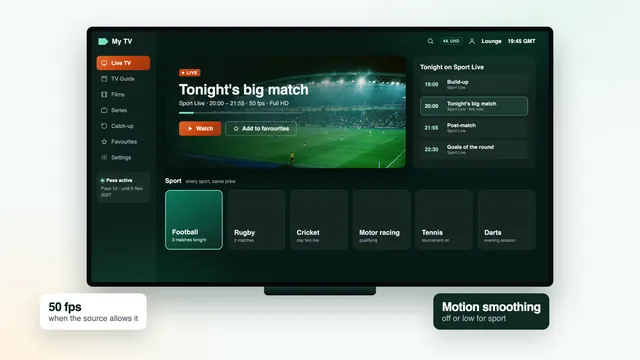
- Live sport: Standard, with motion smoothing low. Samsung calls it Picture Clarity and LG calls it TruMotion; at high settings it gives a soap-opera look and can smear a fast ball.
- Energy saving: switch off eco or power-saving dimming, which lowers the brightness in steps and turns dark scenes murky.
- Sharpness: keep it low. Streams are compressed, and extra sharpening draws attention to the blocky edges that compression leaves behind.
Many sets store a picture mode per input. The built-in player and an HDMI stick can therefore carry different settings, so adjust both if you use both.
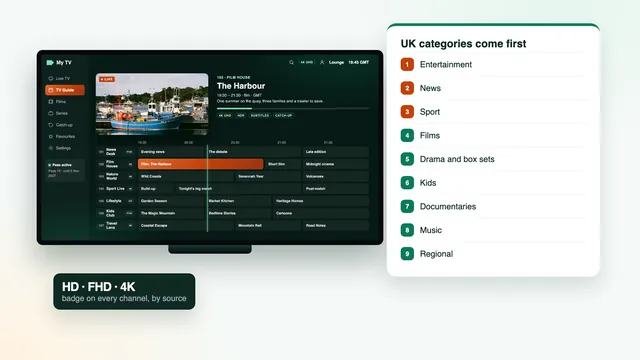
A player running on the TV usually follows the stream’s own rate, so 50 fps sport needs nothing extra. Where judder does appear, it tends to come from a stick or box sending 60 Hz, and that device’s frame-rate option is the fix. How channels are grouped and labelled HD, FHD or 4K helps you tell a source limit from a TV setting before you change anything.
Wi-Fi, Ethernet and the evening peak on a TV
Built-in TV Wi-Fi is often weaker than a phone’s, and the set usually stands in a corner far from the router. Where you can, run a cable to the TV’s Ethernet socket. Many TVs have a 100 Mb/s port, and that is plenty: about 25 Mb/s per 4K screen, 10 Mb/s for Full HD and 5 Mb/s for HD.
When a cable is out of the question, a pair of powerline plugs, or a mesh satellite in the lounge, does most of what a cable would. On Wi-Fi, connect the TV to 5 GHz if it offers it, since 2.4 GHz is crowded wherever homes sit close together.
Measure on the TV itself, with a speed app from its store, between about seven and eleven at night, when a weak link shows. The player’s buffer absorbs a short dip; repeated pauses mean the connection needs work.
When a player freezes, restart in order: the router first, then the TV from the wall socket, then the player. This sequence, more than any setting, settles most IPTV subscription Smart TV complaints we hear about on a weekday evening.
When a streaming stick is the simpler route
A TV app saves a box and a remote, but it is not always the easier path. Consider a stick when one of these sounds familiar:
- The store on your set lists none of the players above, which is common on older or less widespread models.
- The TV is slow: menus lag, the channel list takes an age to open, or the app closes on large categories.
- You want Smarters Pro or TiviMate and your Samsung or LG does not list them.
- The TV no longer receives software updates, so its apps will sooner or later stop being updated too.
- You move between rooms: a stick fits in a pocket, a TV app stays where it is.
A Fire TV stick on Fire OS, a Google TV device and an Apple TV all take the Xtream login. The Amazon steps, including which recent models to avoid, are in the Fire TV stick guide, and every other device is on the setup page.
Plug the stick into a socket rated for 4K, power it from its own adapter rather than the TV’s USB port, and turn on the enhanced HDMI colour setting from the HDR section.
An IPTV subscription Smart TV app in the lounge and a stick in the bedroom, watched at the same time, count as two screens. Running a pass in two rooms explains what Pass 12 Duo allows, and the plans page lists each pass with its screens and end date.
Frequently asked questions
Does an IPTV subscription Smart TV setup need a box?
Not when the TV’s store carries a compatible player. Samsung and LG sets usually use Smart IPTV or IBO Player, and Android or Google TV sets install Smarters Pro or TiviMate from Google Play. A stick is only needed when none is listed or the TV is too slow.
Is Smarters Pro available on Samsung and LG TVs?
On some models and in some countries, at the time of writing. Search the TV’s store by name, and before installing make sure the publisher shown is Tech Smarters Private Limited. If it is missing, Smart IPTV or IBO Player read the same access.
Where do I find my TV’s MAC address?
Smart IPTV and IBO Player show it on their first screen, and IBO Player shows a device key beside it. Copy it exactly as the player displays it, since that is the address the playlist is linked to. Only the digits 0 to 9 and the letters A to F appear in it.
Why does my Samsung TV not show Dolby Vision?
Samsung televisions support HDR10 and HDR10+, but not Dolby Vision. A programme in Dolby Vision plays without it, and that comes from the TV, not from the pass or the player. LG OLED and QNED sets do support it.
Do I need a new login if I change TV?
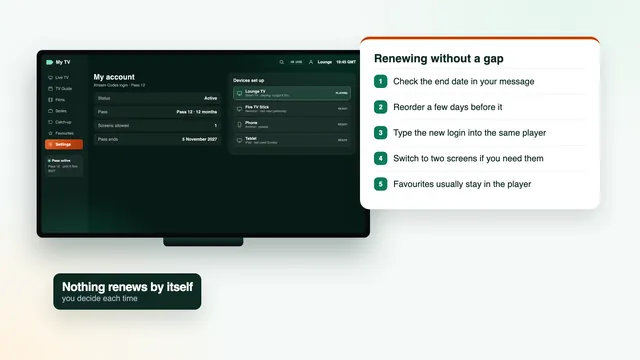
No, your login stays valid until the end date of your pass. With a MAC-linked player you attach the playlist to the new set’s address; with Smarters Pro or TiviMate you type the same details again. A one-screen pass plays on one TV at a time.
Which picture mode suits streamed channels?
Filmmaker Mode, Movie or Cinema for films and drama, and Standard with low motion smoothing for sport. Switch off energy-saving dimming and keep sharpness low, because streams are compressed and sharpening exaggerates it.